In a recent post regarding using forms to collect data easily, a couple of people thought I should have used my own advice for one of the collection methods - that is, to embed the actual form in a web page - in my blog post in this case. Great idea...
So - below is an embedded version of my Blogging Survey. Took me literally 30 seconds to get the embed code from the "Form" menu of the spreadsheet. This is just a sample survey, but feel free to answer this survey and I'll post results soon if I get enough respondents.
Monday, February 9, 2009

The value of Collaboration learned from political campaigns
I would never have expected to see anything related to the political process as a model for business collaboration - but I guess this is part of "change". Just a couple of (old-ish by now) links to anecdotal evidence of how powerful web-based collaboration can be. In these examples, it was Google Docs (spreadsheets) used as a tool in the 2008 US presidential campaign process...
From Huffington Post:
"While the presidential contenders had enlisted technologies such as Facebook, YouTube, Twitter and LinkedIn, which all received a great deal of attention, it was Google Docs which had the most amount of influence, in spite of receiving the least amount of attention.
... The Obama campaign was aware that this had become a major player in the grassroots space, sparking a revolution in the way people self-organize and conduct grassroots efforts and political campaigns. Since a campaign is constantly on a quest for money and voters, Obama's grassroots organization valued agility over hierarchy; online collaboration became a necessity."
From DailyKos:
"All of us have access to the data, and Google has quick and easy ways to share that data (while retaining the privacy of our volunteers) with the Oakland Campaign headquarters.
... With the advent of Google Docs, what was once a fact of life in community organizing, the lost, corrupted and out-of-date sign-in sheet, has become a much more powerful tool."
From Huffington Post:
"While the presidential contenders had enlisted technologies such as Facebook, YouTube, Twitter and LinkedIn, which all received a great deal of attention, it was Google Docs which had the most amount of influence, in spite of receiving the least amount of attention.
... The Obama campaign was aware that this had become a major player in the grassroots space, sparking a revolution in the way people self-organize and conduct grassroots efforts and political campaigns. Since a campaign is constantly on a quest for money and voters, Obama's grassroots organization valued agility over hierarchy; online collaboration became a necessity."
From DailyKos:
"All of us have access to the data, and Google has quick and easy ways to share that data (while retaining the privacy of our volunteers) with the Oakland Campaign headquarters.
... With the advent of Google Docs, what was once a fact of life in community organizing, the lost, corrupted and out-of-date sign-in sheet, has become a much more powerful tool."
Wednesday, February 4, 2009
Small Business Web Tip: Collect data quickly using a web form
At the Small Business Technology Summit this week, I was asked "what's the one action these small businesses can do today to have an impact on their business" (I put that in quotes - but I'm sure I've tweaked the question a bit to match my answer ;).
I answered, "Create a form - a survey - for free, which you can email to your customers to immediately find out what they think of your product or service". A bunch of people asked me for more information - so I figured it would be useful to post a quick "Web Tip" here... If you don't feel like reading, there are also plenty of public videos on this topic done by others.
If you want to first get a sense of what one of these Forms would look like, you can answer my example survey about blogging. If you do, try to really answer it, and maybe we'll get some useful results I can share.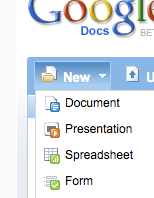
The below might seem like a bunch of steps, but this can literally take 10 minutes - it's the thinking about which questions to ask and what multiple choice questions to offer, which is the hard and important part.
How to collect data for free using Google Docs Forms:
Step 1:
Go to Google Docs - http://docs.google.com
Sign-in or get an account. You need a google account, but that doesn't mean a Gmail account necessarily (see my old video on that topic).
You should see your list of Docs - if you've used the service before - or an empty list (which, actually then, isn't a list at all if there's nothing in it... it's just a frame)

Step 2:
Click the "New" dropdown button on the upper left - and choose "Form".
You'll be taken to a new window which is the "Form Editor". It starts you off with an automatic first question called "Name" - just to remind you that you may want to ask (optionally) for the respondants name - and leaves you in edit mode on question #2.
When editing the form - you edit one question at a time (click the pencil button on the right) and click "done" as you finish setting up each question.
At this point you can go back and edit the first question (example - add some help text to tell people that "Name is optional, but helps me know who you are").
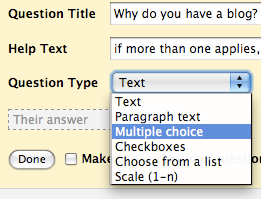
The default field type is "Text" - but you *should* use multiple choice or scale questions where possible - as those give great quantitative summaries - and if you want people to type a more descriptive answer, change the question type to "paragraph text".
Step 3:
Finish entering all your questions and click the "Save" button at the top. Keep the form rather short if possible - nobody likes to answer a long survey - and you won't want your second survey to be ignored if you decide to do another one in a few weeks/months.
Step 4:
Make your own confirmation message. After someone responds to your form, they get a generic "Thanks!" message - but you can edit that to create your own message.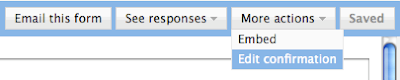 You can include valid URLs to have a link on that page. At the top of the form editor, there is a "More Actions" button. Click that and select the option "Edit Confirmation".
Step 5:
Send the form! You have a few ways to get the form into the hands of your potential respondents:
1 - Send the form using email... If you select the "email this form" option, you can enter the email addresses of respondents and they will get the form EMBEDDED in their email message if they use Gmail or Yahoo mail (those are the only popular mail systems which allow that) - or - they will get a link to a separate web page which contains your form.
2 - Embed the form on your blog or website. The other option in the "more actions" button is "embed" - that gives you the HTML code you can embed in your blog post, blog template or website so people can answer the form directly from there.
3 - Get the URL of the form and IM/mail it directly to your potential respondents. The URL can be copied from the bottom of the form editor screen, where it says "You can view the published form here:".
Step 6:
Go see your form. Click on that link at the bottom of the Form Editor to make sure your form looks as you intended. That's how others will see it. [NOTE: You can test the form, but there is currently an issue where the form response count will not be reset, even if you remove your test response]
Step 7:
See your responses! The form you created actually created a spreadsheet in the background. After saving your form - close that form editor window and go back to your Google Docs list. Find your form/spreadsheet on the docs list and click it to open it. You'll see a spreadsheet with the questions you asked as the column headers (with one additional column as the first, which is the timestamp of each reply). If you already sent the form out, the spreadsheet may already contain responses which have been received. If you hang out there for a while, you may even see responses appear in real time (that's fun).
Step 8:
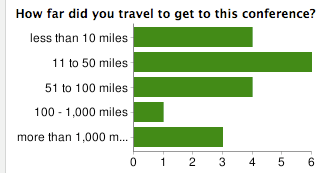
See your reponse summary. From the spreadsheet, click on the "Form" menu at the top and click on "Show Summary". That takes you to a page which summarizes, in chart format where feasible, the responses to each question.
Step 9:
Set up notifications so that you know when people respond to your form.
Click the "Share" button (on the upper right of the spreadsheet window) and select "Set notification rules". In that dialog, select the options "[when] A user submits a form", and choose either "Email - dialy digest" or "Email - right away", depending on how many responses you expect to get and how much you want to spam yourself.
Some Tips:
> *Do not* try to re-arrange the questions on the spreadsheet itself. There are issues where the form and the spreadsheet get out of sync if you do that. Re-arranging should be done from the form editor only - where questions can be dragged and dropped into the order you want them.
> There is not yet a way to restrict people to filling out the form only once.
> *Do not* "PUBLISH" the resulting spreadsheet or set it to "Anyone can view" unless that's really what you need. Those settings are NOT necessary to make the form broadly available, and it might let people see the results of the survey which you may not have intended.
> If you are HTML-ready, you can take the Form page and tweak the HTML to give it style or additional logic - just *never* change the POST URL or the NAME ATTRIBUTES on the HTML form object in that page. You'll also need your own place to host the updated HTML page. This isn't something you'll be able to get much support on from the Google Docs help center - so only do this if you are feeling lucky ;)
Have fun!
I answered, "Create a form - a survey - for free, which you can email to your customers to immediately find out what they think of your product or service". A bunch of people asked me for more information - so I figured it would be useful to post a quick "Web Tip" here... If you don't feel like reading, there are also plenty of public videos on this topic done by others.
If you want to first get a sense of what one of these Forms would look like, you can answer my example survey about blogging. If you do, try to really answer it, and maybe we'll get some useful results I can share.

The below might seem like a bunch of steps, but this can literally take 10 minutes - it's the thinking about which questions to ask and what multiple choice questions to offer, which is the hard and important part.
How to collect data for free using Google Docs Forms:
Step 1:
Go to Google Docs - http://docs.google.com
Sign-in or get an account. You need a google account, but that doesn't mean a Gmail account necessarily (see my old video on that topic).
You should see your list of Docs - if you've used the service before - or an empty list (which, actually then, isn't a list at all if there's nothing in it... it's just a frame)

Step 2:
Click the "New" dropdown button on the upper left - and choose "Form".
You'll be taken to a new window which is the "Form Editor". It starts you off with an automatic first question called "Name" - just to remind you that you may want to ask (optionally) for the respondants name - and leaves you in edit mode on question #2.
When editing the form - you edit one question at a time (click the pencil button on the right) and click "done" as you finish setting up each question.
At this point you can go back and edit the first question (example - add some help text to tell people that "Name is optional, but helps me know who you are").

The default field type is "Text" - but you *should* use multiple choice or scale questions where possible - as those give great quantitative summaries - and if you want people to type a more descriptive answer, change the question type to "paragraph text".
Step 3:
Finish entering all your questions and click the "Save" button at the top. Keep the form rather short if possible - nobody likes to answer a long survey - and you won't want your second survey to be ignored if you decide to do another one in a few weeks/months.
Step 4:
Make your own confirmation message. After someone responds to your form, they get a generic "Thanks!" message - but you can edit that to create your own message.
 You can include valid URLs to have a link on that page. At the top of the form editor, there is a "More Actions" button. Click that and select the option "Edit Confirmation".
Step 5:
Send the form! You have a few ways to get the form into the hands of your potential respondents:
1 - Send the form using email... If you select the "email this form" option, you can enter the email addresses of respondents and they will get the form EMBEDDED in their email message if they use Gmail or Yahoo mail (those are the only popular mail systems which allow that) - or - they will get a link to a separate web page which contains your form.
2 - Embed the form on your blog or website. The other option in the "more actions" button is "embed" - that gives you the HTML code you can embed in your blog post, blog template or website so people can answer the form directly from there.
3 - Get the URL of the form and IM/mail it directly to your potential respondents. The URL can be copied from the bottom of the form editor screen, where it says "You can view the published form here:".
Step 6:
Go see your form. Click on that link at the bottom of the Form Editor to make sure your form looks as you intended. That's how others will see it. [NOTE: You can test the form, but there is currently an issue where the form response count will not be reset, even if you remove your test response]
Step 7:
See your responses! The form you created actually created a spreadsheet in the background. After saving your form - close that form editor window and go back to your Google Docs list. Find your form/spreadsheet on the docs list and click it to open it. You'll see a spreadsheet with the questions you asked as the column headers (with one additional column as the first, which is the timestamp of each reply). If you already sent the form out, the spreadsheet may already contain responses which have been received. If you hang out there for a while, you may even see responses appear in real time (that's fun).

Step 8:
See your reponse summary. From the spreadsheet, click on the "Form" menu at the top and click on "Show Summary". That takes you to a page which summarizes, in chart format where feasible, the responses to each question.
Step 9:
Set up notifications so that you know when people respond to your form.
Click the "Share" button (on the upper right of the spreadsheet window) and select "Set notification rules". In that dialog, select the options "[when] A user submits a form", and choose either "Email - dialy digest" or "Email - right away", depending on how many responses you expect to get and how much you want to spam yourself.
Some Tips:
> *Do not* try to re-arrange the questions on the spreadsheet itself. There are issues where the form and the spreadsheet get out of sync if you do that. Re-arranging should be done from the form editor only - where questions can be dragged and dropped into the order you want them.
> There is not yet a way to restrict people to filling out the form only once.
> *Do not* "PUBLISH" the resulting spreadsheet or set it to "Anyone can view" unless that's really what you need. Those settings are NOT necessary to make the form broadly available, and it might let people see the results of the survey which you may not have intended.
> If you are HTML-ready, you can take the Form page and tweak the HTML to give it style or additional logic - just *never* change the POST URL or the NAME ATTRIBUTES on the HTML form object in that page. You'll also need your own place to host the updated HTML page. This isn't something you'll be able to get much support on from the Google Docs help center - so only do this if you are feeling lucky ;)
Have fun!
Tuesday, February 3, 2009
Small Business Summit in NYC

I attended the Small Business Summit in NY yesterday. Met many great people and had an opportunity to be on a Panel with Michael Shultz (Microsoft) and Harry Brooks (Network Solutions) moderated by Brent Leary (CRM Essentials and Business Technology Radio). I Had a chance to express some of my thoughts about how web-based social media and collaboration tools create opportunities for people to "keep and nurture loyal customers" (that was the official title - though we covered a wider set of concepts). Also got some great reminders about what small business focus on every day - and in particular, the importance of the search and ads side of the web. That stuff is highest on the small businesses "need to know, need to improve" list in most cases. More coverage of the conference can be found here.
There were a couple of points made during and after our panel which probably warrant more instruction and link or two for those of you who couldn't understand my babbling and happen to find me here... Here's two I can think of - but ping me here if there were others.
Create a Form on Google Docs
I suggested that you "Poll your customers and get their opinions directly and immediately [into a spreadsheet]"... Here's a link to the Google Docs Help Center on that topic. I'm also going to post a quick how-to here on my blog soon, since so many people have asked me for detailed instructions and a sample. (look for that soon)
[Update Feb 5: Here's that "Creating Forms" web tip post]
Use YouTube to collect videos about your product or service
I mentioned how you can create a channel on YouTube to collect videos about a specific topic, which could be useful for prospective customers, particularly when current customers have created those videos. We did that on the Google Docs team - we created the Google Docs Community channel. It's good for customers, for discovery and for the video creators who want more views/exposure.
Saturday, January 31, 2009
Last Minute, Automated-ish, Superbowl Pool

It's the Saturday before Superbowl Sunday - and you wish you had created a box pool for you and your friends. Too late, right? Nah... anything is possible... (if you've never been in a superbowl box pool - either stop reading or read on to check it out).
Here's an online way to do it (I know there are "real" sites for this): I created a SuperBowl Box Pool spreadsheet which has an online FORM for people to quickly participate... People fill out the form and they get assigned a random box in the pool - then, when all boxes are taken (there's 100 boxes, so it's ok to take more than one), the score values are randomly assigned and the names are again shuffled...
Then, as I enter the scores at the end of each quarter, the winners are identified automatically (as if that would be too hard to do by hand - sometimes I'm almost pathetic in my need to create useless spreadsheet formulas)
If you want to play in my pool (just for fun... no "points" to be won here!), just FILL OUT MY FORM and then go SEE THE BOX POOL to see which random boxes.
If you want your own - just go to THE SAMPLE and make your own copy (File menu, "create a copy" option... you'll need a Google Docs account).
If I get 100 boxes filled, I'll post the winner here after the Superbowl!
[Update: If you use the sample to run one of these on your own, be careful once the box numbers are generated... as they could easily be re-generated in-advertently if a change is made to the sheet which forces a re-calc - like inserting columns or other things. This shouldn't impact anything until you generate the random score numbers ... Once you take that startup step as per the instructions, don't touch the thing except to enter scores ;) and PRINT IT to be sure... ]
[Update 2/2/2008: And the winner was - Curious George. I would have won the half-time score, which is no wonder since I had to take almost half the boxes between myself and people close enough that they may as well have been me... Well - maybe I'll start collecting players for 2010 ;) ]
Thursday, January 29, 2009
Losing a friend is less fun
When I first added Friend Connect to my blog it was fun watching as people (slowly) became "members" of my blog, and how some of them became my "friends". The number of people in both those groups is rather small, but the latter (friends) group is really, really small - so small in fact, that when my favorite blogger "un-friended" me (ouch!), I noticed pretty fast. Was it something I said? Nah - can't be - as I haven't said much of anything here in too long... Aha! That's it! What could be more offensive to a prolific blogger than a blog which sits there in silence? I get it.
Ok - you've made your point. I promise to post more. Can we be friends again? Oh, this is tricky... you have so many Friend Connect members on your site (2858... er... 2859..) that I can't find you to formally ask you back. hmmm... oh wait - there you are! You are still on my blog's easy to browse (read: short) members list... whew... Tricky business this friends 2.0 stuff.
Ok - you've made your point. I promise to post more. Can we be friends again? Oh, this is tricky... you have so many Friend Connect members on your site (2858... er... 2859..) that I can't find you to formally ask you back. hmmm... oh wait - there you are! You are still on my blog's easy to browse (read: short) members list... whew... Tricky business this friends 2.0 stuff.
Monday, December 8, 2008
Friend Connect now open
 I had many people ask me about Friend Connect when I put it on my blog as part of an early beta, so I figured I should post quickly about it again... While it's been pretty cool up until now, there were only a few blogs which had it - so a bit less "connecting" on my blog. But now, anyone can add it to their site.
If you haven't noticed it, or don't even know what I'm talking about - it's those to little windows (gadgets) on the right side of this blog. The first shows people who "follow" my blog, and the second provides a place to quickly comment on the blog or on a specific post (comments on a specific post page are separate from other comments).
Check out the Friend Connect blog post to get the accurate info.
Subscribe to:
Posts (Atom)